AI Video Caption Generator
Auto-Subtitle Your Videos
Skyrocket engagement and keep viewers watching—even on mute. Our AI-powered Video Caption Generator instantly creates accurate transcripts and dynamic subtitles that boost accessibility and drive social growth. Turn passive scrollers into loyal followers today.

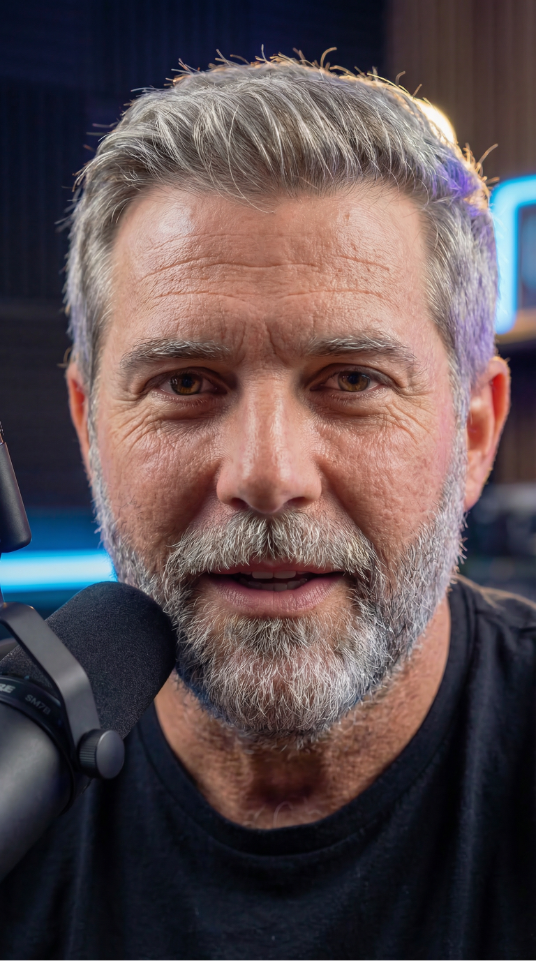
THERE AND
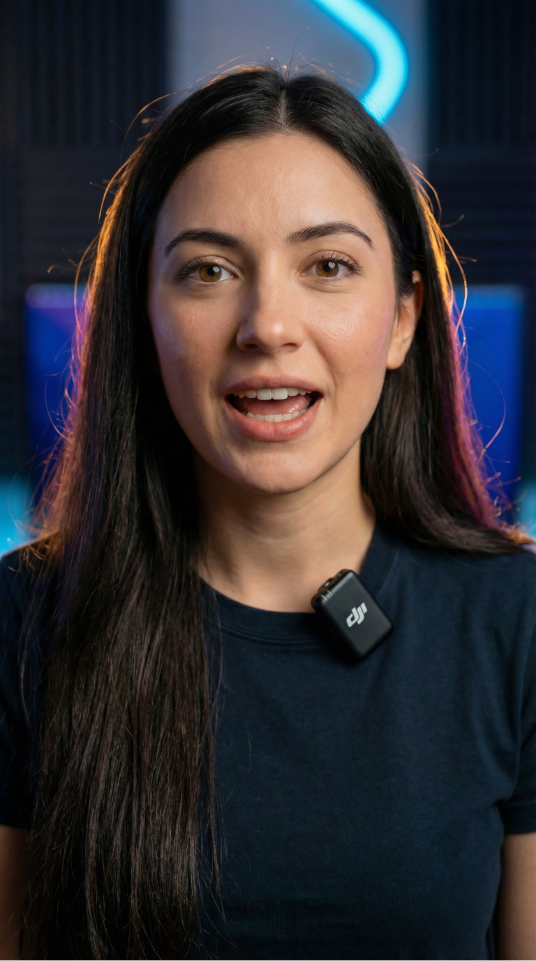
OF COLLEGE
SENIORS 🎓
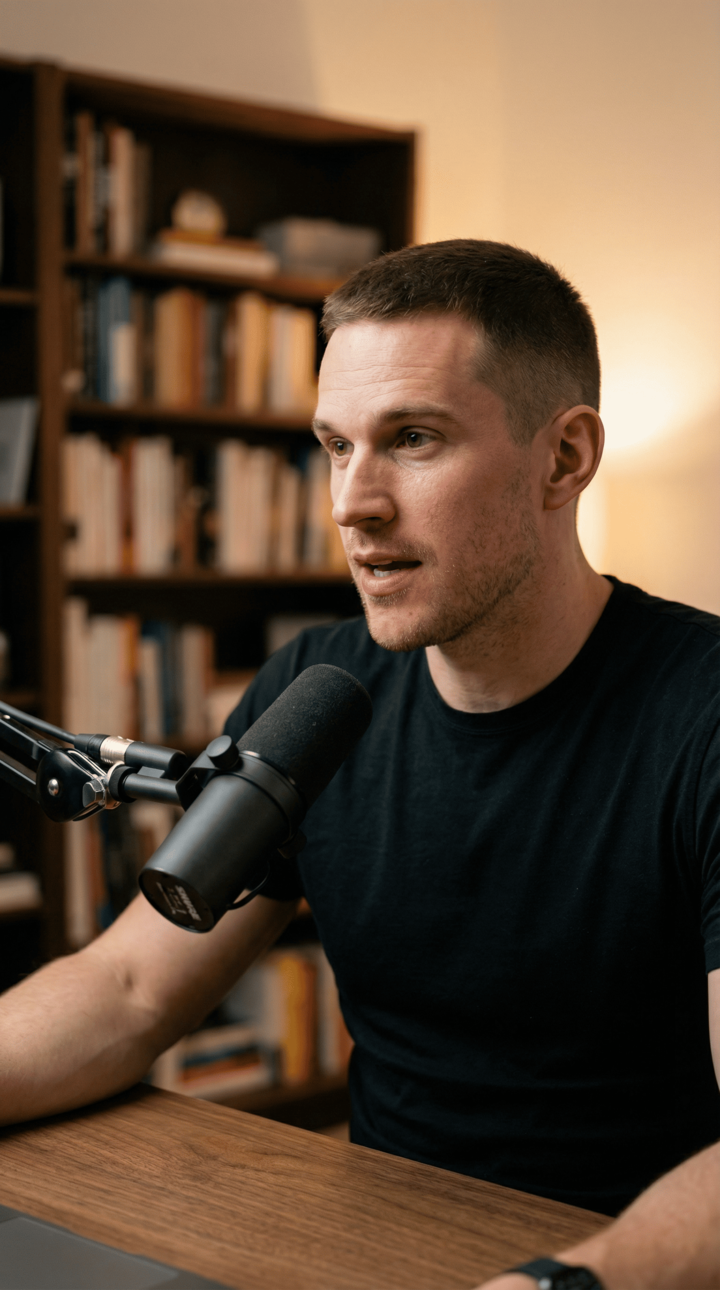
FOR THOSE
WINDOWS
Use Trending
Subtitle Templates,
Inspired
By Top Creators
Our collection includes styles directly inspired by top content creators, so you can easily replicate their success.
- 26+ subtitle styles to increase views & 100% customizable
- Add emojis, and highlight keywords with animations
Increase Retention with
Engaging Visual Hooks
Use visual hooks to engage your audience instantly and boost retention. A 2-second AI-generated hook adds dynamic elements to make your video stand out.
- Auto-generate a hook with 1 click
TURN CHAOS
INTO CASH! 💰
Why uncertainty is the perfect time to build wealth.
How to generate captions
A streamlined workflow designed for speed and precision.
Import Video
Upload your vertical or horizontal video.
Pick a Style
Choose a preset caption style (Karaoke, Pop-up, TikTok, Typewriter).
EDITING
Burn & Export
The captions are baked into the video for seamless social sharing.
Frequently asked questions
You don’t need to do anything, but adding captions is a smart move for both your audience and your content. Captions boost engagement and make your videos accessible to people who are hard of hearing or who prefer watching without sound. Additionally, search engines use closed captions to understand and rank your content, so including relevant keywords can help you reach your target audience more effectively.
With Vync, the process is simple. The platform automatically creates a transcript of your recording. All you need to do is open the Editor, click the captions icon, and select one of the five available styles. Your captions will be added to the video right away. From there, you can customize the font, size, color, alignment, and where you want the captions to appear on the screen, such as the bottom or top. That said, Vync isn’t the only way to add captions. For a complete overview, check out our full guide on adding captions to videos.
Absolutely! Once you upload a file to Vync, you can use the Editor to add captions to your video and then style them however you like. If you want to add captions or subtitles to a video that’s already online and not yours, you might still be able to enable closed captions. Just look for the CC button, or check the platform’s settings.
Yes, you can definitely customize the style of captions! In Vync, you have full control over the styling and positioning of your captions. You can adjust the font, font size, color, alignment, and even the animation duration to match your video’s look and feel. Whether you want them at the bottom, top, or any other position on the screen, our caption template makes it easy to customize everything exactly how you want.
Both subtitles and captions show audio as text, usually at the bottom of the screen. The difference is that subtitles only present spoken dialogue, while captions include dialogue plus other sounds like laughter or a door closing. Over time, people started calling same‑language subtitles “captions,” which created some confusion. That’s why most people also refer to social media subtitles as captions—and Vync follows this common usage too. Can I customize the appearance of captions or subtitles?
First, rest assured that both options make your content more accessible and easier to watch. The best choice depends on what you want to achieve with your video. Open captions are permanently “burned” into the video file and work great for social media. They’re always visible and help boost engagement. Since many people scroll through social media with the sound off, open captions make it more likely they’ll actually watch your content. Closed captions, on the other hand, rely on a separate “sidecar” transcript file uploaded alongside your video. Viewers can then turn captions on or off as they like. Closed captions can also help your content rank higher in search results because search engines can read and analyze the text. Just keep in mind that you’ll need a platform that supports closed captions to use them.
Start Creating.
Just describe and get a ready-to-use video no learning required.
• Join the new standard